 Afinar
Recording with Afinar · Mac guide
How to record guitar
with music on Mac.
Hear yourself in the song you’re learning. Afinar captures your guitar and the music together, so you can listen back to how you actually played.
For acoustic guitar, you can start with your Mac’s built-in microphone and headphones. No audio interface or external microphone is needed. Open your music in Afinar, press Record, and start the music. When you’re done, stop the take and listen back. This guide covers audio takes on Mac.
What you need
For an acoustic instrument, all you need is Afinar, a Mac with a built-in microphone running macOS 14.4 or newer, and headphones. Wired headphones let you hear the music while the microphone picks up your instrument.
For electric guitar, connect through an audio interface’s instrument input. You can also use an external microphone for an acoustic guitar, or connect its pickup through an interface if it has one.
Make your first take
-
Bring your music into Afinar.
Open a practice website or video in Afinar’s browser and save the page to your scores. Or open a PDF, Guitar Pro, or MusicXML score and attach an audio file. The music you want in the take needs to play inside Afinar.
If the page isn’t saved when you press Record, use Add & Record to save it and continue.
-
Choose your input and sound.
Select your Mac’s built-in microphone or your connected audio input, then play a few notes to check the signal. Follow the setup prompts and allow Microphone access when asked, including when you use an interface. Website and video audio also need Screen & System Audio Recording permission.
Choose a tone preset as your starting point, then adjust effects such as compression, delay, and reverb to suit your playing. For electric guitar, you can also import your own compatible NAM capture of an amp and cabinet together, including A2 files. Explore amps and effects →
-
Press Record, then start the music.
Recording starts when you press Record, or after your count-in. On a website, start the site’s player. With an attached audio file, use Afinar’s playback controls. Play your part, then press Stop when you’re finished; the end of the song doesn’t stop the take for you.
-
Listen for one thing to work on.
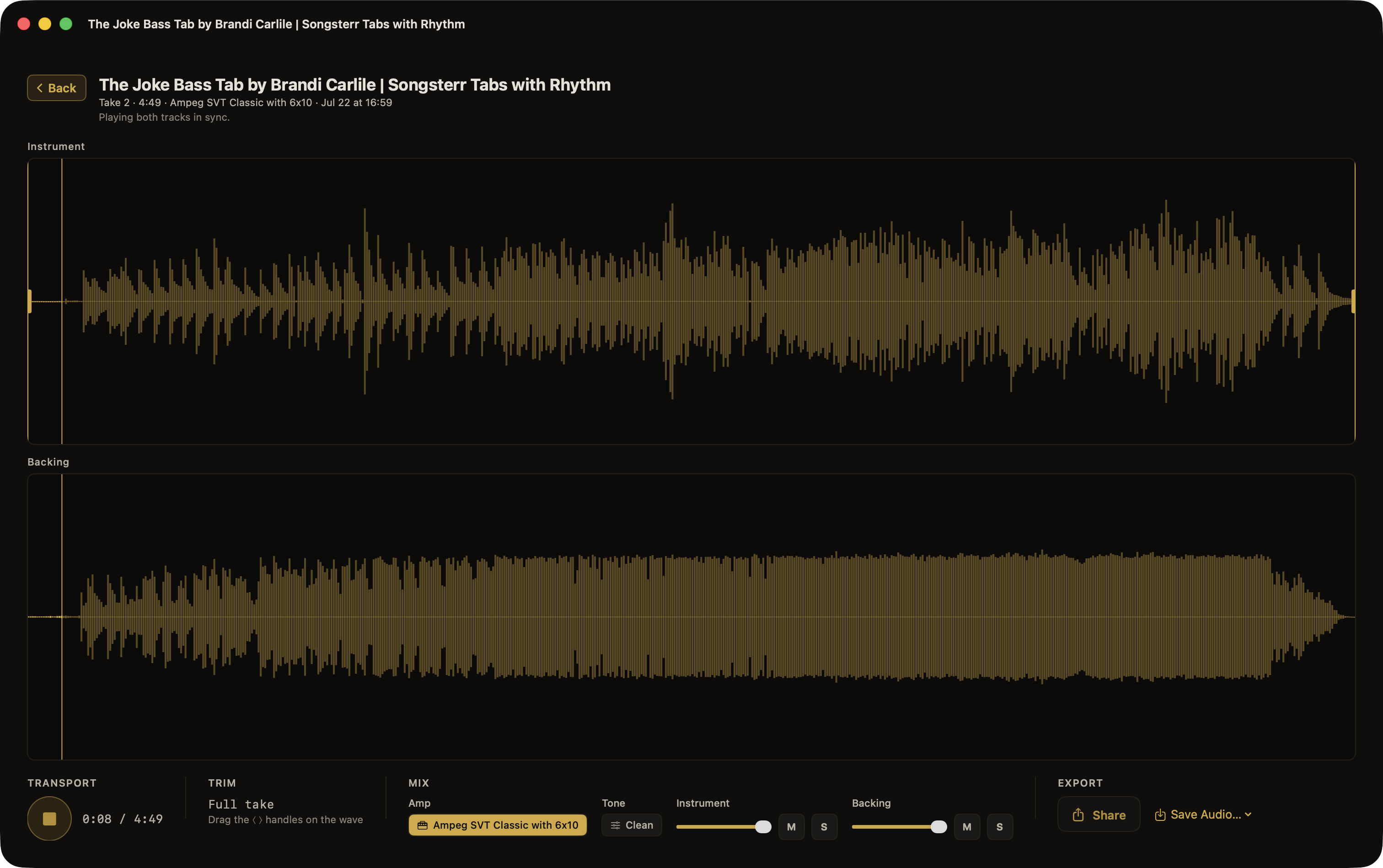
Open the take beside your score. Bring your guitar forward in the mix, or hear it against more of the music. Listen for an entrance, a chord change, or a phrase you want to play again. Trim the start or end for listening back, then return to the song for another go.
Listen back to your playing.
Each take stays with its song. Adjust the instrument and music levels to hear your part clearly.
Afinar saves your instrument signal before its amps and effects are applied, so you can focus on the performance first. With ToneSwap, change the preset, load another compatible NAM amp-and-cabinet capture, or adjust compression, delay, and reverb after recording.
Can I record music from another app?
Use an imported audio file or open the website inside Afinar’s browser. That browser’s sound can be captured with your guitar; this workflow doesn’t capture music playing in a separate Mac app.
Can I export my take?
For a take made with an imported audio file, you can export the mix or save your instrument and the music separately. See recording and export options.
Start with a song you love.
Make a take, hear what’s coming together, and choose what to try next. The same approach works with bass, voice, keys, and other instruments through an audio interface or microphone.